How to Post a Job on LinkedIn in 2026: Step-by-Step Guide Made Easy
If you want to learn how to post a job on LinkedIn, then you're just in the right place. Read this article to find everything about the LinkedIn job posting in depth.


CONTENTS
- 01Key takeaways
- 02What this LinkedIn job-posting guide covers
- 03Step-by-Step Guide: How to Post a Job on LinkedIn in 2026 (Easy and Effective)
- Step 1: Log in to LinkedIn and Navigate to the Jobs Section
- Step 2: Start a New LinkedIn Job Posting
- Step 3: Add Job Details With Purpose
- Step 4: Set Your Application Preferences
- Step 5: Add Screening Questions (Highly Recommended)
- Step 6: Preview and Publish Your LinkedIn Job Post
- Step 7: Promote Your Job (Optional but Effective)
- Step 8: Share and Distribute Your Post
- Step 9: Manage Applicants Proactively
- Step 10: Close or Extend Job Post
- Bonus: What’s the Cost to Post a Job on LinkedIn?
- 04How Recooty Saves Time & Money on LinkedIn Hiring
- 05Customization Tips for How to Post a Job on LinkedIn in 2026
- Customize Your Job Title for Clarity and Reach
- Personalize Your Job Description Highlights
- Add Targeted Screening Questions
- Customize How Candidates Apply
- Write with Your Ideal Candidate in Mind
- Customize Visibility with Internal Sharing
- Set Location and Work Type Smartly
- 06Common Issues & Troubleshooting for How to Post a Job on LinkedIn in 2026
- LinkedIn Job Post Not Showing in Search
- Post Stuck in Draft or “Pending Review”
- Rejected LinkedIn Job Post
- Reached Free Job Posting Limit
- Can’t Post Under Company Page Name
- Billing or Budget Issues with Sponsored Jobs
- External Apply Link Not Redirecting Properly
- Trouble Editing or Duplicating a Job
- 07Best recruiter software for LinkedIn job posting: direct, promoted, or ATS?
- The Recooty editorial view
- 08LinkedIn job posting quality checklist for 2026
- 09LinkedIn Apply, ATS handoff, and application limits
- 10Conclusion: publish a clear LinkedIn job and own the follow-up
- 11Frequently Asked Questions
- Additional Resources on Job Posting
Key takeaways
- LinkedIn currently allows one free job post at a time for eligible employers. The free post can remain active for up to 14 days, then pauses; if it is not promoted, LinkedIn says it automatically closes after 30 days. Free posts also have a limited application allowance, typically 10 to 30 applications depending on the role.
- Free-post eligibility is not universal. LinkedIn may require promotion, identity verification, or a different hiring product for some employers, high-demand roles, staffing companies, or generic company pages.
- Promoted job cost is dynamic pay per click. LinkedIn’s own pricing guidance says the recommended budget depends on title, location, industry, marketplace activity, and similar job posts, so a fixed “LinkedIn job posting cost” is not reliable.
- Use the company LinkedIn Page, standard title, salary, location, remote status, and application route consistently. These details affect trust, matching, and whether applicants complete the process.
- Best recruiter software is useful when you need multi-board distribution, shared screening, source attribution, or an ATS handoff. Measure qualified applications and hires, not just LinkedIn views or raw applies.
LinkedIn job posting works best when you choose the right application route before you write the listing. Use the company Page, a standard title, clear pay and location details, and an application path your team can review promptly.
This guide covers the current posting steps, including LinkedIn’s AI-assisted drafting, screening questions, promotion, and external application options. If you also need to distribute a role to several free job posting sites, an AI ATS can keep the workflow in one place.
What this LinkedIn job-posting guide covers
You will learn how to:
Head to linkedin.com/jobs
Set your application options (AI recommended or manual)
Start a New LinkedIn Job Posting
Add Job Descritpion With Purpose
Set Your Application Preferences Step (Easy Apply vs external link)
Add Screening Questions (Highly Recommended)
Add location filters (including “LinkedIn jobs near me” friendly options)
Stay within the LinkedIn free job posting limit
Understand the LinkedIn job posting cost if you choose to promote listings
Preview and Publish Your LinkedIn Job Post
Step-by-Step Guide: How to Post a Job on LinkedIn in 2026 (Easy and Effective)
Follow the steps below to create the post, set the application route, and publish it with the correct company identity.
Step 1: Log in to LinkedIn and Navigate to the Jobs Section
To begin your LinkedIn job posting journey:
Head to linkedin.com/jobs
Click the briefcase icon at the top of your homepage labeled “Jobs”
Click “Post a Job” or go directly to the Post a Job page
Pro Tip: Make sure you’re logged into the correct company profile. If you’re a recruiter or admin, ensure your page role allows you to post on behalf of the company.
Step 2: Start a New LinkedIn Job Posting
Once in the job dashboard, you’ll see two posting options:
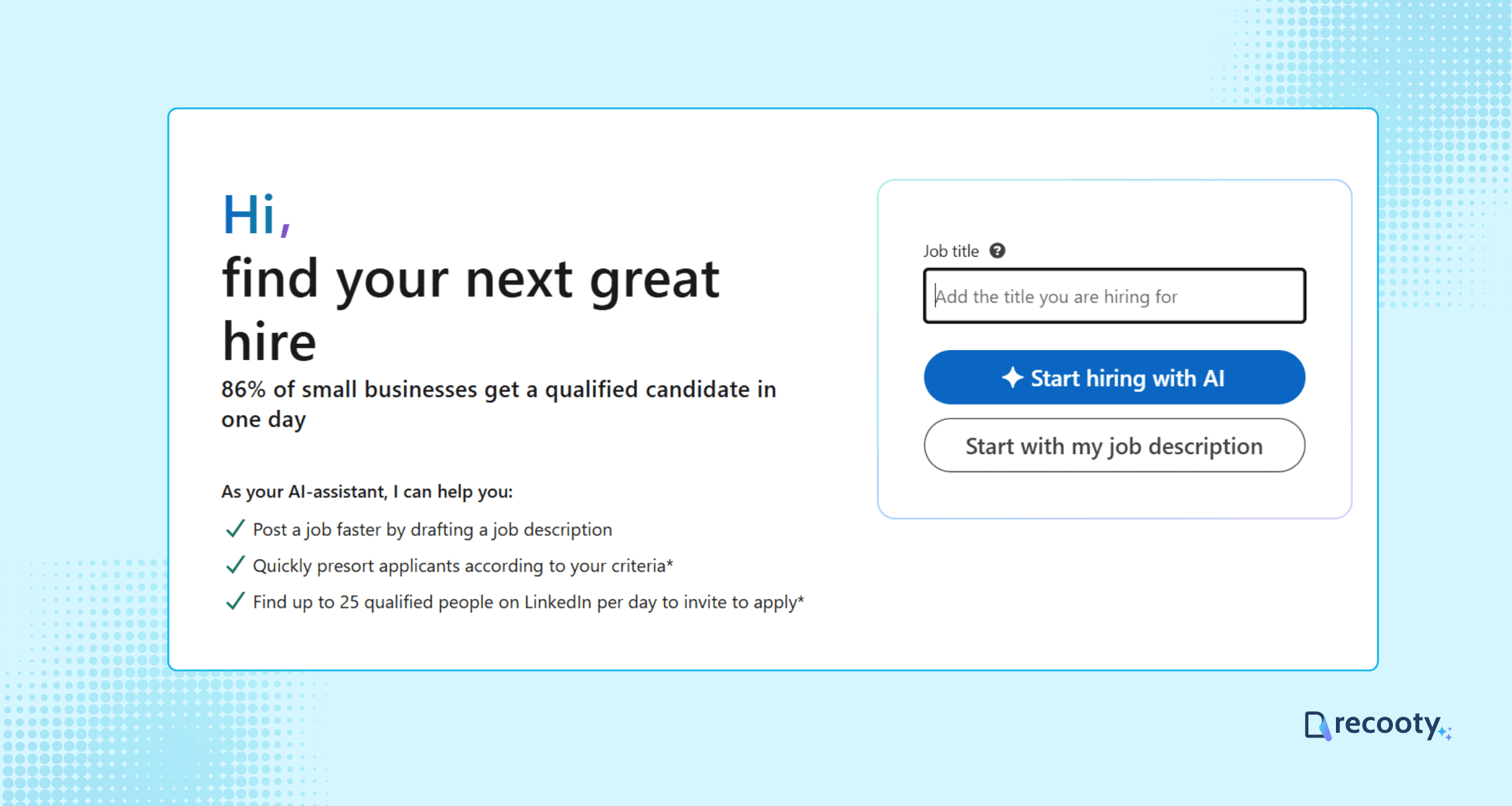
Option A: Start Hiring with AI (Recommended)
LinkedIn now offers an AI-powered assistant that drafts job descriptions based on job titles. You can customize or approve its suggestions. It works great for saving time while still creating tailored listings.
Option B: Manual Setup
Prefer total control? You can build your job post step-by-step with fields like:
- Job title
- Company
- Location
- Employment type (full-time, contract, etc.)
- Remote status (on-site, remote, hybrid)
Use a standardized, searchable job title (e.g., “Marketing Manager” vs “Marketing Ninja”) to improve your listing’s search ranking.
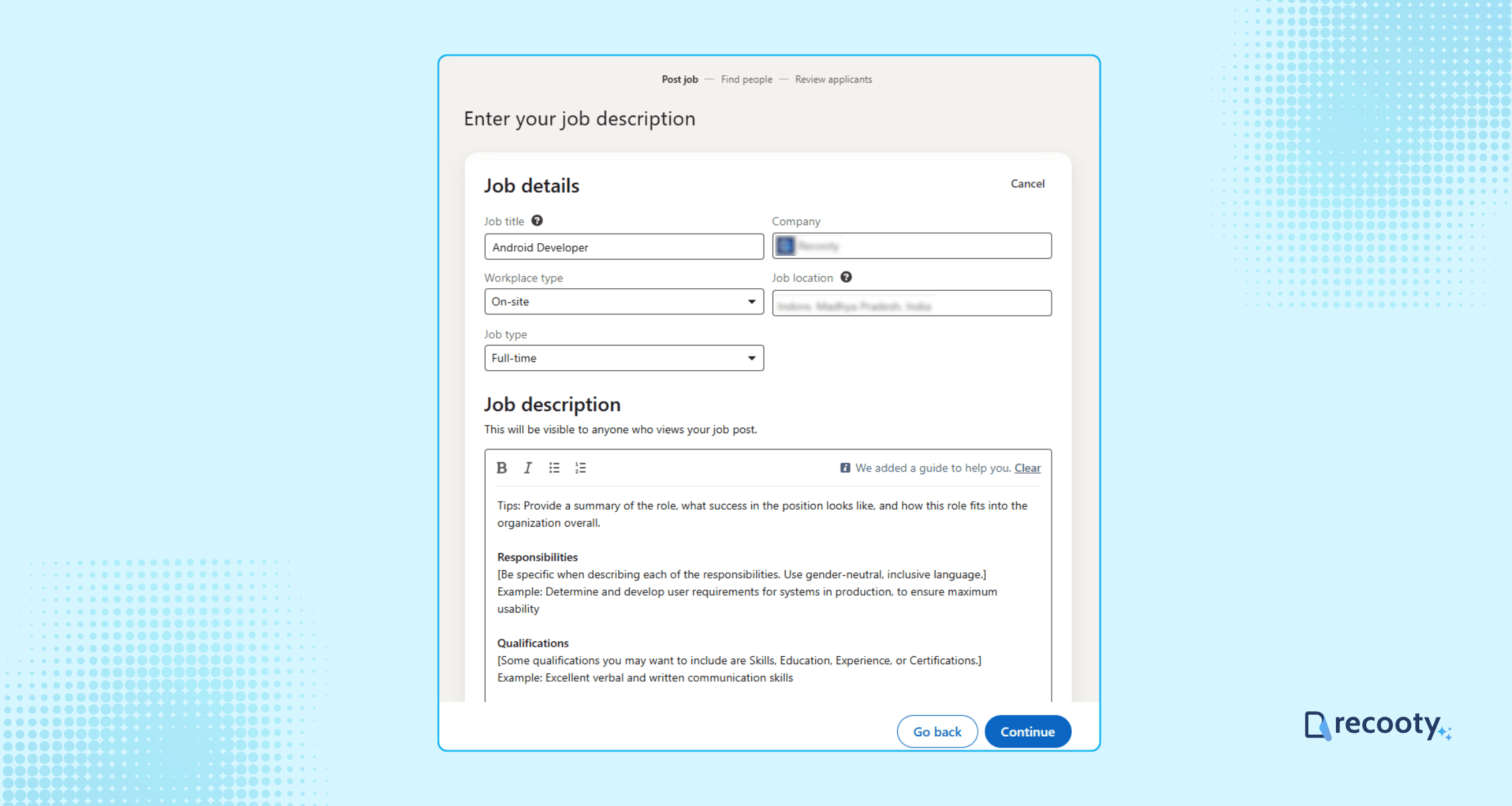
Step 3: Add Job Details With Purpose
When creating a new role, LinkedIn prompts you to enter:
- A detailed job description
- Required vs. preferred skills
- Industry and job function
- Optional: salary info, benefits, perks
Why this matters:
Roles with clear location, work mode, salary, and benefits give candidates useful information before they apply.
Want to post a job on LinkedIn near a specific region? Accurately list “job location” to make it findable in “LinkedIn jobs near me” searches.
Step 4: Set Your Application Preferences
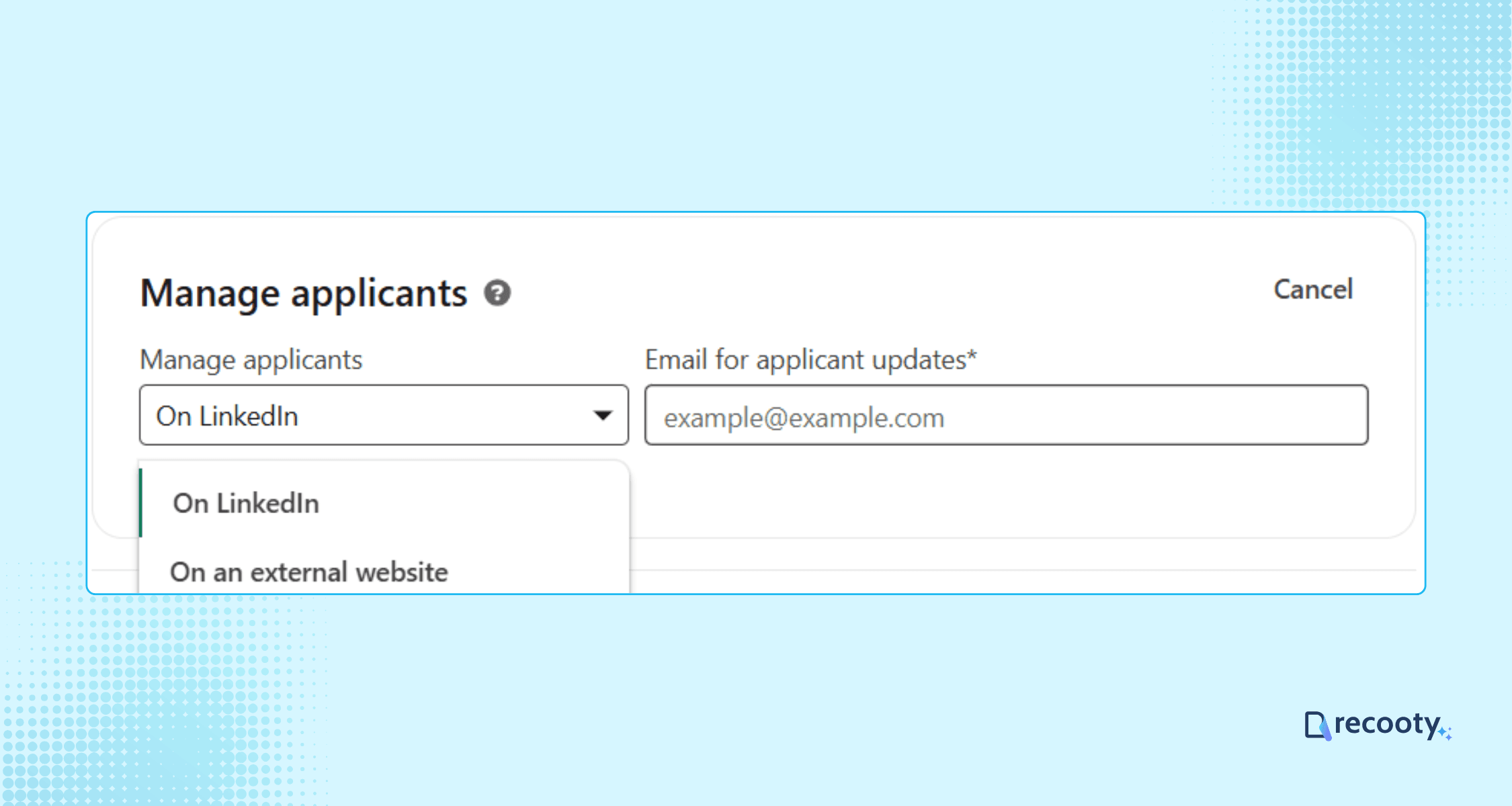
LinkedIn gives you two application methods:
Easy Apply
Candidates apply using their LinkedIn profile. It’s fast and yields higher application rates. Best for entry-level or marketing roles.
External Apply Link (recommended for larger teams)
Use this option to redirect candidates to your ATS or branded careers page. If you’re using Recooty, you can paste your unique application URL here.
Step 5: Add Screening Questions (Highly Recommended)
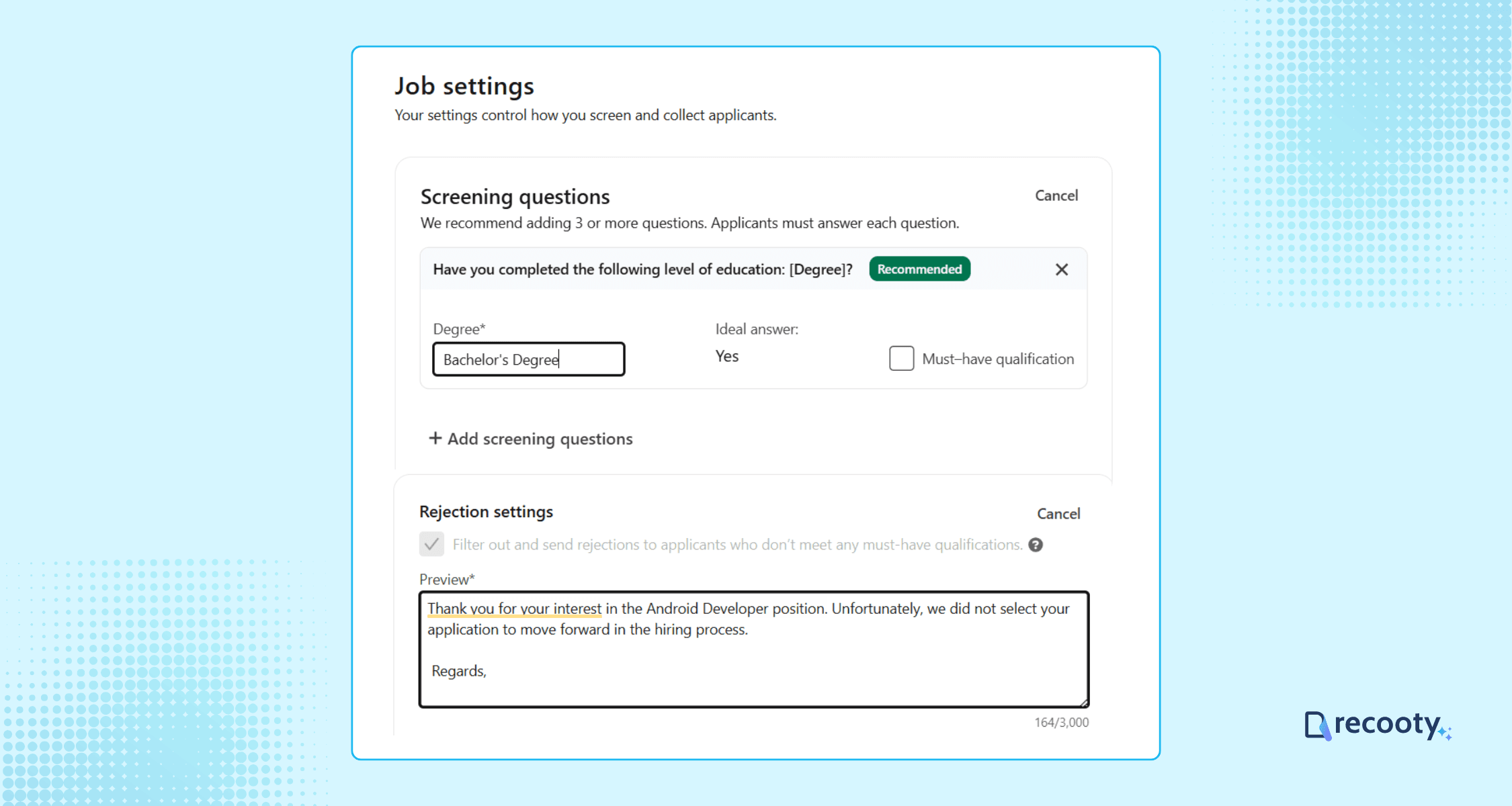
Screening questions help filter unqualified applicants. You can add:
- Yes/No questions (e.g. “Are you authorized to work in the U.S.?”)
- Multiple choice (e.g. “Which tool are you most experienced in?”)
- Text answers (e.g. portfolio or experience)
Example: For a Software Engineer role, you could ask:
“How many years of experience do you have with React?”
“Do you have work authorization for the U.S.?”
These questions can help your team review the same evidence for every applicant.
Step 6: Preview and Publish Your LinkedIn Job Post
Before going live:
- Review the job post preview
- Correct typos or formatting issues
- Confirm that your apply method and screening questions are correct
Click “Post job for free” to make it public.
Step 7: Promote Your Job (Optional but Effective)
Once live, you can promote your job to improve reach.
Sponsored LinkedIn Job Posting Cost
- Daily spend: Starts at around $10/day (can be capped)
- You pay per click (CPC model), helping you control spend
- Bonus: Sponsored Jobs are shown at the top of search results
Recommendation: Promote high-priority or hard-to-fill positions only after checking the listing and application path. Set a budget and a qualified-application target before you start.
Guide: Sponsored Job Best Practices
Step 8: Share and Distribute Your Post
To boost visibility organically:
- Share the job post via company page updates
- Ask employees to reshare using the #Hiring tag
- Post in relevant LinkedIn groups or regional communities
Free tip: Use Recooty to share your job automatically to 20+ free job posting sites like Glassdoor, Google Jobs, CareerJet, and more.
Learn more: Distribute Jobs 1-Click via Recooty
Step 9: Manage Applicants Proactively
After launch, go to “Manage Jobs” under your LinkedIn Jobs tab.
Here you can:
- View candidate profiles
- Sort by LinkedIn matches
- Use InMail to message applicants directly
- Shortlist top talent and leave comments for collaborators
Set aside regular time to review candidates, even for a free job post. A response deadline helps prevent strong applicants from waiting.
Step 10: Close or Extend Job Post
Your job post automatically expires after 30 days (for free postings). Before it does:
- You can extend the deadline with one click
- Pause the job if the role is filled early
- Duplicate the post if hiring for multiple similar roles (e.g., multiple SDRs)
Post Management Guide: Managing and Closing Your Job Post
Bonus: What’s the Cost to Post a Job on LinkedIn?
You can post 1 free job at a time using a personal or admin LinkedIn account
- Sponsored jobs use a pay-per-click model with a budget set in LinkedIn
- You can reuse, duplicate, or promote each job post over time
How Recooty Saves Time & Money on LinkedIn Hiring
Tools such as Recooty can handle job distribution from one dashboard. They can help teams:
- Create job posts with smart templates
- Post directly to LinkedIn and multiple free job boards
- Use your application link to ensure your process stays centralized
- Track applicants, message them, and schedule interviews in one place
Pricing and product terms vary, so confirm the current offer before budgeting for an ATS.
Customization Tips for How to Post a Job on LinkedIn in 2026
After you create the post, use the customization options to make the role easier to find and easier to assess. These changes should match the work, location, and application process.
01Customize Your Job Title for Clarity and Reach
Your job title affects your visibility in search results more than any other field.
Why it matters:
- LinkedIn’s search algorithm ranks listings based on relevant exact-match titles.
- Candidates frequently use specific roles like “Content Writer” instead of variations like “Word Wizard.”
Customization Tips:
- Always use a standardized and searchable job title.
- Avoid internal or branded terminology that applicants won’t search for.
Example: A standard title such as “Marketing Manager, Brand Strategy” is easier to search than an internal title such as “Brand Evangelist.”
🔗 Reference: LinkedIn job title optimization best practices
02Personalize Your Job Description Highlights
Write the job description in clear language. Start with the role's purpose, then explain the work, requirements, and expected outcomes.
How to customize:
- Start with a human-centric intro about why the role exists.
- List outcomes, challenges, and team culture alongside the day-to-day tasks.
- Add real tools/platforms they’ll use (e.g., “Work daily with Recooty + Notion”).
Bonus: Include a note from the hiring manager or a “What success looks like at 90 days” section.
03Add Targeted Screening Questions
Screening questions help you check job-related requirements such as experience, work location, or eligibility.
Best practices include:
- Keep it short (2–4 questions max).
- Use knockout questions like “Do you have experience with React (2+ years)?”
- Ask location or visa-related eligibility if it’s non-remote.
Tip: Use LinkedIn’s built-in filters or link with a tool like Recooty to centralize your pipeline.
For a U.S.-based remote role, relevant questions might include:
- “Authorized to work in the U.S.”
- “Link to personal portfolio”
- …and avoided dozens of misfits.
04Customize How Candidates Apply
You can use LinkedIn Easy Apply or send applicants to an external application link. Choose the route your team can monitor and where the full assessment can be completed.
When to use each:
- Use Easy Apply for faster, higher-volume roles.
- Use external links for personalized workflows or to integrate pre-screen forms.
Set up your own branded careers page using Recooty, with your logo, description, and listing controls.
05Write with Your Ideal Candidate in Mind
Write for the person you want to hire. Use a tone that suits the role while keeping the requirements and work arrangement clear.
How to personalize tone:
- Adjust formality based on role seniority (execs need clarity and structure, creatives love energy).
- Add a specific “Culture & Perks” detail, such as the work location or meeting schedule.
For example, explain what remote work means for meetings, working hours, and time-zone overlap.
06Customize Visibility with Internal Sharing
Don’t just rely on LinkedIn’s algorithm.
How to improve reach:
- Share your listing to your personal and company page as a “We’re Hiring” post.
- Ask team members to engage with reposts (tags, likes, comments boost algorithmic reach).
- For niche roles, post into LinkedIn Groups or Slack communities.
Track which sharing channels produce qualified applications so you can repeat the useful ones.
07Set Location and Work Type Smartly
Want to show up in searches like “LinkedIn jobs near me”? You need to optimize the job location and remote/hybrid settings.
How to customize:
- Always set specific geo-locations, even for remote jobs (LinkedIn requires a country or city).
- Use “Remote” in the title if the role is fully distributed.
- Specify timezone overlap when the role requires it.
Ideal format: “Remote (Timezone: GMT+5 to GMT+8 encouraged)”
Common Issues & Troubleshooting for How to Post a Job on LinkedIn in 2026
LinkedIn posts can be delayed, rejected, hidden from search, or disconnected from an external application page. The checks below help you identify the cause before spending more on promotion.
1. LinkedIn Job Post Not Showing in Search
If your job post is not appearing in relevant searches, check the title, location, company Page, job status, and visibility settings first.
Why It Happens:
- The listing is still under moderation or hasn’t been indexed.
- The job title or location isn’t optimized or is too vague.
- Your free job post doesn’t get high search priority.
How to Fix It:
- Wait up to 24 hours after posting to allow for indexing.
- Use keyword-friendly job titles, such as “Sales Executive, Remote,” instead of an internal nickname.
- Double-check job location. For remote roles, still assign a base city or market area.
2. Post Stuck in Draft or “Pending Review”
Posts can remain in review when keywords, formatting, or missing fields trigger LinkedIn’s moderation flow.
Common Triggers:
- Use of promotional language like “earn big,” “hiring now!”
- Vague or misleading job titles.
- Missing required fields like job location or industry.
Fix It Step-by-Step:
- Edit the post: remove emojis, ALL CAPS, and aggressive sales copy.
- Ensure every required field, especially employment type and seniority, is filled.
- Save, exit, and repost.
If approval takes more than 24 hours, check LinkedIn’s Job Posting Help Center.
3. Rejected LinkedIn Job Post
Yes, LinkedIn can reject a post when the listing includes restricted language, unsupported claims, or other policy issues.
Reasons for Rejection:
- Language that suggests bias (e.g. “young team”).
- Unverified external links or third-party redirects in the job description.
- Promoting roles that don’t qualify as real employment (e.g. MLM, unpaid recruiting gigs).
Resolution:
- Edit with neutral, inclusive language.
- Remove any links inside the job description body.
- Repost using LinkedIn’s branded sourcing language and focus on the role.
See compliance policies here: Job Posting Policy Guide
Edit suggestion: Instead of “Join our exciting & young team,” say “Join a fast-paced, collaborative environment focused on innovation.”
4. Reached Free Job Posting Limit
Many ask “How many free jobs can you post on LinkedIn in a month?” The answer: One active free job post at a time per company profile.
What This Means:
- If one post is active, you’ll have to wait/pause it to post another.
- Additional job posts require LinkedIn Premium or job credits.
Workaround:
- Close or pause your current free job to make room.
- Use Recooty to distribute your post to other free job posting sites beyond LinkedIn.
- Or promote the listing via LinkedIn for increased visibility.
5. Can’t Post Under Company Page Name
You need the correct Page permissions to post under a company profile.
Common Causes:
- You’re listed as a “Content Admin,” not a “Job Poster” or “Super Admin.”
- You’re using a personal account without recruiter tools.
Solutions:
- Ask your company’s LinkedIn Page admin to assign you Job Poster rights: Admin Tools > Page Roles > Assign Permissions.
- Verify you’re posting “as the company” in the dropdown, not your personal profile.
6. Billing or Budget Issues with Sponsored Jobs
A sponsorship campaign can pause when the payment method fails or the promotion budget is reached.
Key Triggers:
- No active payment method attached.
- Past-due billing error from LinkedIn Ads.
- Reached job promotion spend cap.
How to Fix It:
- Go to Business Manager > Billing Settings.
- Add or update a credit card or payment method.
- Review billing report for errors.
Need help? Use LinkedIn’s Ad Billing Help Center.
Note: Sponsored pricing varies with location, competition, and marketplace activity. Review the budget shown in your account before launch.
7. External Apply Link Not Redirecting Properly
If you’re using Recooty or another ATS, test the external apply page before sharing the job.
Common Errors:
- Link doesn’t use HTTPS (secure protocol).
- The page takes too long to load; user bounces.
- The link expired or was copy-pasted incorrectly.
Follow These Fixes:
- Double-check your Apply URL, use HTTPS, and test from mobile and desktop.
- Minimize redirects; direct applicants to one clear form.
- Set up branded career pages to improve trust.
Recooty lets you customize apply pages through a Custom Career Page.
8. Trouble Editing or Duplicating a Job
Trying to quickly change a remote tag or title variation? Here’s what can go wrong.
What Might Happen:
- LinkedIn doesn’t allow edited posts to change core traits (like title or location).
- You may not see the “Duplicate” option from the job dashboard.
Solution:
- Use “Duplicate” instead of Edit to start a new version fast.
- Update the job name and re-publish as a new listing if substantial edits are needed.
Learn how: Editing and Duplicating Jobs on LinkedIn
Recooty can distribute jobs to LinkedIn, Google Jobs, and other channels from one dashboard.
Explore how Recooty simplifies job posts and avoids technical issues: Start Posting Smarter
Best recruiter software for LinkedIn job posting: direct, promoted, or ATS?
The route you choose affects visibility, cost, and where applications are reviewed. Direct posting suits one eligible role, promotion buys additional reach, and an ATS can return applications to one hiring pipeline.
| Route | Best fit | Current limitation or cost signal | What to measure |
|---|---|---|---|
| Free LinkedIn job | One eligible role with moderate demand | One active free post, up to 14 days before pause, and a role-dependent application cap | Qualified applications and response time |
| Promoted LinkedIn job | Urgent, competitive, or underexposed role | Dynamic pay-per-click budget based on market factors | Cost per qualified applicant and hire rate |
| LinkedIn Apply through ATS | Teams that need applications returned to one pipeline | Basic jobs can have an on-site LinkedIn Apply cap before external applications are used | Apply completion, source accuracy, and stage conversion |
| Job slots or Recruiter product | Recurring or high-volume hiring | Contract or product terms vary by account | Cost per role, recruiter capacity, and time to fill |
LinkedIn’s current free-job help page says a free job must be associated with the company’s LinkedIn Page and becomes less visible over time. Its pricing guidance explains that promoted pricing changes with marketplace activity and that the job can pause when the total budget is reached.
The Recooty editorial view
Start with the free route when the role can tolerate limited visibility and a short review window. If you need more applicants, check the job description, compensation, location, and application path before paying for promotion. An ATS is useful when several reviewers or job boards need one scorecard and source report.
LinkedIn job posting quality checklist for 2026
Before publishing or promoting, check the details that influence discoverability and candidate trust:
- Company identity: Associate the job with the correct LinkedIn Page and verify employer information when requested.
- Searchable title: Use the market-standard title and avoid internal nicknames, excess punctuation, and promotional wording.
- Location and work mode: State the city, country, remote or hybrid arrangement, time-zone expectation, and travel requirement.
- Compensation: Add a real pay range and explain the currency, pay period, commission, bonus, or equity context.
- Description: Lead with the role outcome, then list responsibilities, skills, benefits, schedule, and the application process.
- Screening: Ask job-related questions and use the same scorecard for every applicant.
- Application route: Choose LinkedIn Apply or an external ATS or career-page route based on review capacity.
- Lifecycle: Set an owner to monitor the free-post pause, application cap, budget, edits, and closure date.
LinkedIn’s current help content says a free post can pause after 14 days and that application limits can vary by role. Check the post from a candidate view so the application route remains clear after the visibility window or LinkedIn Apply cap changes.
LinkedIn Apply, ATS handoff, and application limits
LinkedIn’s Apply Connect documentation says basic jobs can collect LinkedIn Apply submissions and send completed applications to an ATS in real time. After the on-site limit is reached, LinkedIn Apply can be disabled and candidates may be redirected to the external career site. Confirm this behavior before promising a fully native application experience.
| Handoff check | Question to answer before launch |
|---|---|
| Canonical job record | Does LinkedIn or the ATS own the title, location, salary, and status? |
| Application destination | Do candidates apply on LinkedIn, on the career site, or through both routes? |
| Source attribution | Will the ATS preserve LinkedIn as the original source and distinguish free from promoted? |
| Screening | Are LinkedIn questions and ATS questions consistent and job-related? |
| Cap and fallback | What happens when LinkedIn Apply reaches its role-specific limit? |
| Closure | Does closing the ATS role also close or update the LinkedIn post? |
Use Recooty’s applicant tracking system as the internal workflow link, and compare the requirements with how to choose the right recruitment software. For employer-brand consistency, link the listing to how to create a career page that converts.
Conclusion: publish a clear LinkedIn job and own the follow-up
Choose the posting route that fits the role, write the listing around real requirements, and test the application path before launch. Monitor free-post limits or promotion spend, keep LinkedIn and the ATS in sync, and judge the channel by qualified applicants and hires.

Frequently Asked Questions
Can I post a job on LinkedIn for free?
Eligible employers can usually post one free job at a time. LinkedIn’s current help page says the free post can remain active for up to 14 days before it pauses, can close after 30 days if it is not promoted, and is subject to application and 30-day posting limits. Some employers or roles may be required to promote or verify their identity.
How much does LinkedIn job posting cost?
Promoted jobs use dynamic pay-per-click pricing. LinkedIn recommends a budget based on factors such as title, location, industry, competition, and marketplace activity. Review the budget in your account instead of relying on an old fixed daily estimate.
Why is my LinkedIn free job paused?
LinkedIn may pause a free post after its visibility window or application limit is reached. The job can also be affected by eligibility rules, high-demand role restrictions, or reposting the same title and company too soon. Check the job dashboard for the specific status and next action.
Can an ATS post jobs to LinkedIn?
Yes, eligible integrations can post Basic jobs and return LinkedIn Apply submissions to the ATS. Confirm the applicant cap, fallback to the external career site, source attribution, and close or update behavior before relying on the integration for a high-volume role.
Should I use Easy Apply or an external application link?
Use Easy Apply when a short, mobile-friendly application and fast review are realistic. Use an ATS or branded career page when the role needs a longer assessment, document collection, structured workflow, or shared hiring review. The best option is the one your team can monitor and respond to consistently.
Can I repost the same LinkedIn job for free?
LinkedIn limits free reposting. Its current help content says reposting the same job title and company within seven days requires promotion, and free-post limits still apply. Close or update the existing role rather than creating near-duplicate listings to force visibility.
Additional Resources on Job Posting
Source: https://recooty.com/blog/how-to-post-a-job-on-linkedin/
Practical recruiting playbooks, HR tutorials and hiring trends from the team behind Recooty — hiring software for growing teams.